Installation
Download the latest version (currently 2020-06) of Eclipse IDE for Java Developers and extract the package to the desired path (generally in your home directory). It is recommended as a best practice to rename the installation directory to include the version (eg: eclipse-202006) to keep multiple installations from affecting each other.
Setup
Workspace
During the initial run, Eclipse will prompt you to create a workspace.
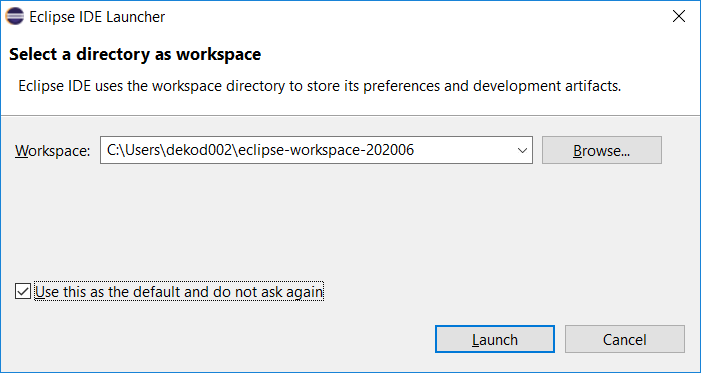
As with the installation directory, the workspace directory should include the version number to prevent multiple versions from affecting each other. You will want to also select Use this as the default and do not ask me again to prevent this prompt from appearing every time you start Eclipse. Click launch and Eclipse will continue loading.
Java Editor
The Java editor can be configured to perform certain tasks upon file save. We want to expand upon the defaults provided by Eclipse to provide clean source code files. To access the editor preferences, select the Window → Preferences menu. Expand the Java → Editor → Save Actions tree view item on the left side of the window.
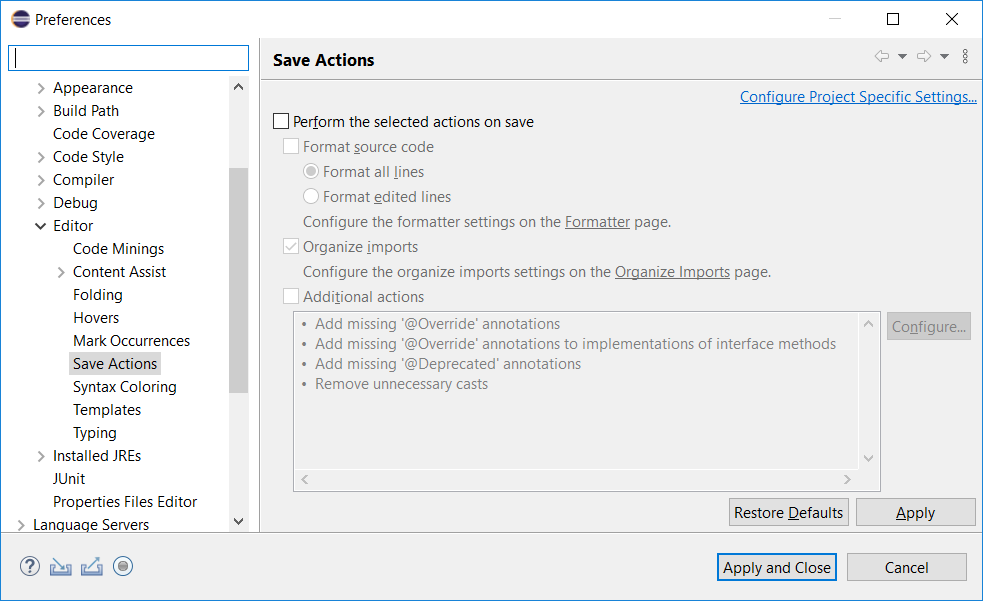
Enable
- Perform the selected actions on save
- Organize imports
- Additional actions
Configure the additional actions by clicking the Configure button. Then,
On the Code Organizing tab, enable
- Remove trailing whitespace
- on all lines
On the Code Style tab, enable
- Use blocks in if/while/for/do statements
- always
- Convert functional interface instances
- to lambda where possible
- to lambda where possible
- Simplify lambda expression and method reference syntax
On the Unnecessary Code tab, enable
- Remove unused imports
- Remove redundant type arguments (1.7 or higher)
- Use Autoboxing (1.5 or higher)
- Use Unboxing (1.5 or higher)
- Remove redundant modifiers
- Remove redundant semicolons
- Remove unnecessary array creation (1.5 or higher)
Install Google Cloud Tools
Open the Eclipse Marketplace by selecting the Help → Eclipse Marketplace... menu item.
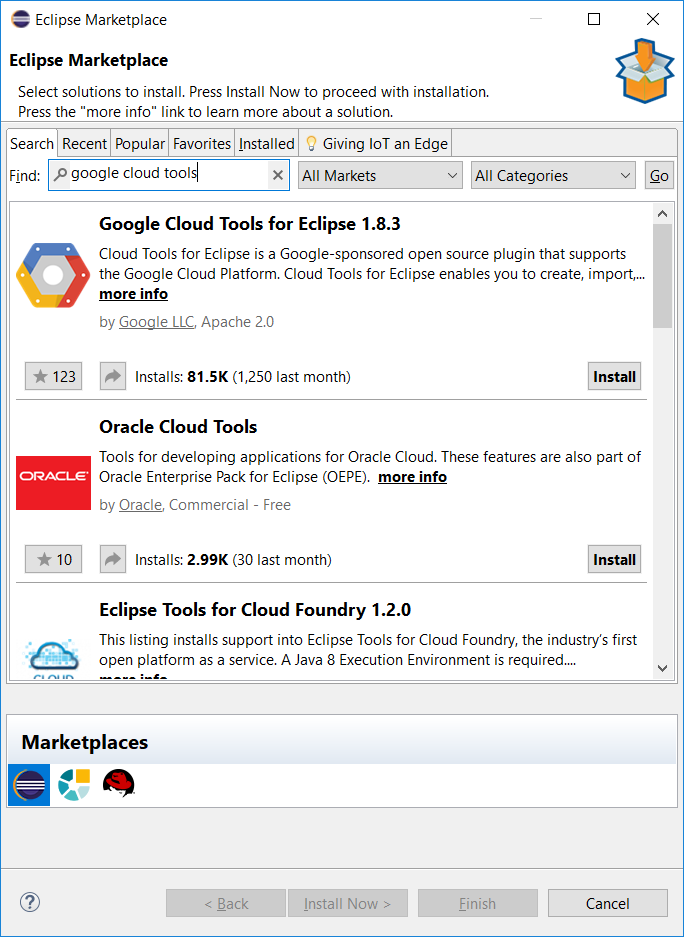
Search for Google Cloud Tools and click Install on the appropriate result. In the resulting dialogue, click Confirm >. Accept the licence agreements and click Finish. Exit the Marketplace dialogue and wait for the installation to complete (this may take several minutes). When prompted to restart Eclipse, click Restart Now.
Code Clean Up Preferences (Recommended)
GX Technology projects use consistent code clean up preferences which enable features beyond the defaults. To access the preferences, select the Window → Preferences menu. Expand the Java → Code Style → Clean Up item in the tree view on the left side of the window.
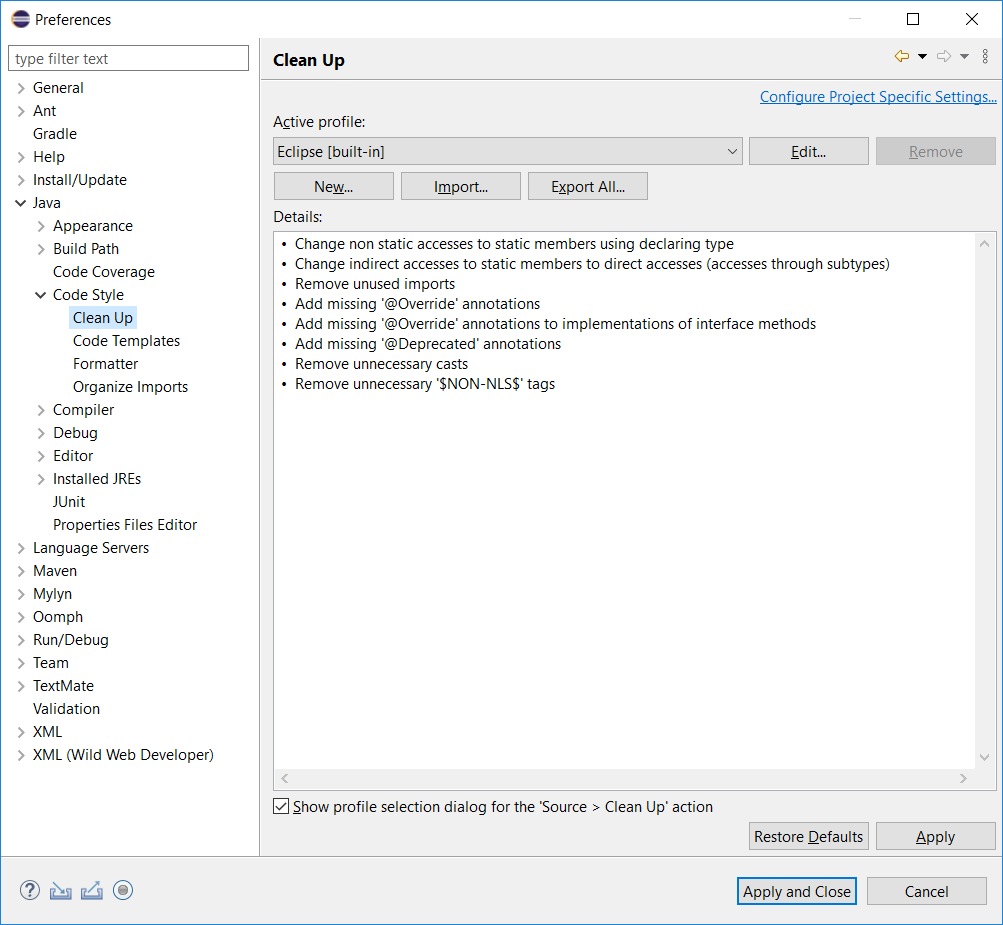
First, create a new profile called GXTech by clicking the New button. Once created, the editor window will be opened.
On the Code Organizing tab, enable
- Remove trailing whitespace
- on all lines
- Organize Imports
On the Code Style tab, enable
- Use blocks in if/while/for/do statements
- always
- Convert functional interface instances
- to lambda where possible
- to lambda where possible
- Simplify lambda expression and method reference syntax
On the Unnecessary Code tab, enable
- Remove unused imports
- Remove redundant type arguments (1.7 or higher)
- Use Autoboxing (1.5 or higher)
- Use Unboxing (1.5 or higher)
- Remove redundant modifiers
- Remove redundant semicolons
- Remove unnecessary array creation (1.5 or higher)
Code Template Preferences (Recommended)
Eclipse uses some odd defaults, including @author tags in the type comment template. Because multiple developers will likely modify a file, the @author tag may be misleading. Committer data from the SCM is more useful as it will indicate the author of particular changes.
To access the preferences, select the Window → Preferences menu item. Expand the Java → Code Style → Code Templates item in the tree view on the left side of the window.
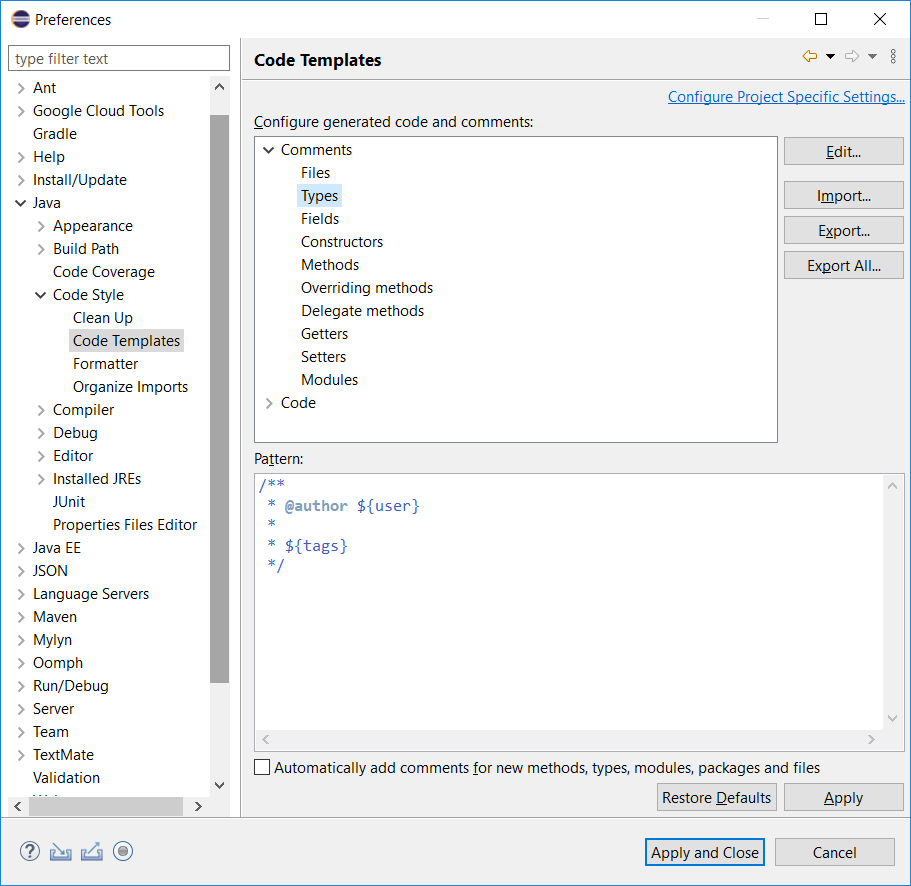
Select the Comments → Type item from the top-right tree view in the window. Click Edit to the right of the tree view. Modify the template to remove the @author line. Click Ok, then Apply and Close.
Add SSH Key (Required for Git)
Open the Preferences window by selecting the Window → Preferences menu item.
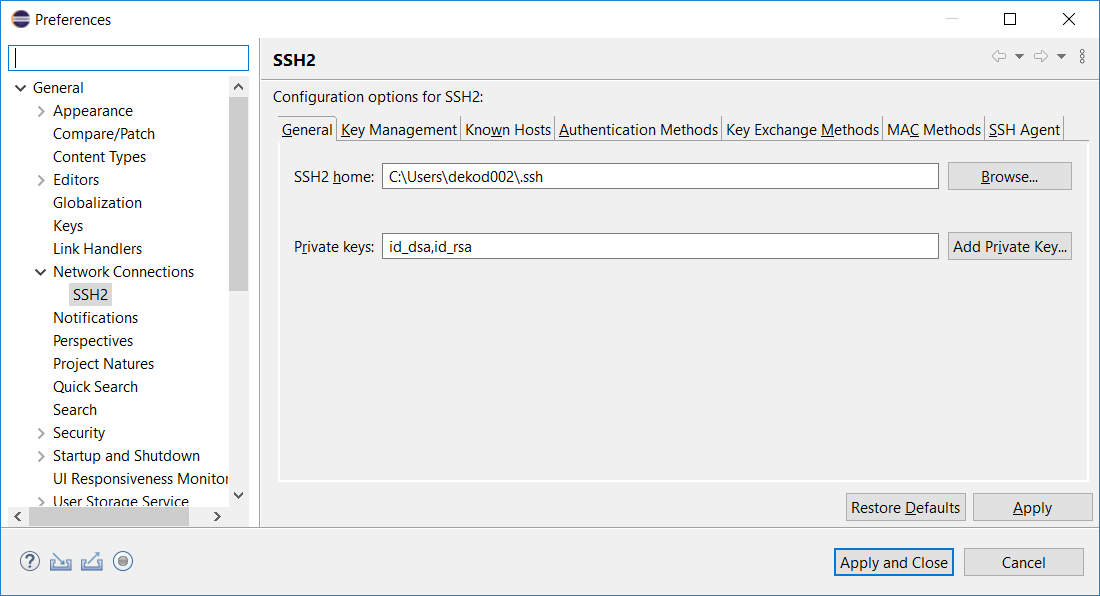
Expand the General → Network Connections → SSH2 path in the tree on the left side of the window. Select the Key Management tab.
If you need to generate a new public/private key pair, you may do so by clicking the Generate RSA Key button. If you have an existing public/private key pair, you may import it by clicking the Load Existing Key button and browsing to your private key (eg: $HOME/.ssh/id_rsa, $HOME/.ssh/id_ecdsa).
You will then want to ensure that the public key is registered with your https://github.wdig.com/ account. Instructions for this can be found at https://docs.github.com/en/enterprise/2.21/user/github/authenticating-to-github/adding-a-new-ssh-key-to-your-github-account.
Install m2e-egit SCM Connector (Required for Git)
Begin by starting to import a project by
- Selecting the File → Import menu item, then
- Select Maven → Check out Maven Projects from SCM.
- Click the link in Find more SCM connectors in the m2e Marketplace.
- Search m2e-egit.
- Select the m2e-egit result and click Finish.
- In the resulting dialogue box, click Next.
- Click Next again.
- Accept the license agreement.
- Click Finish.
- If you receive a Security Warning prompt, click Install Anyway
- When prompted to restart Eclipse, click Restart Now.
Git Preferences (Optional)
Eclipse has built in support for Git, but it isn't mandatory to use it. Use your favourite company-approved Git client if you prefer.
Open the Preferences window by selecting the Window → Preferences menu item.
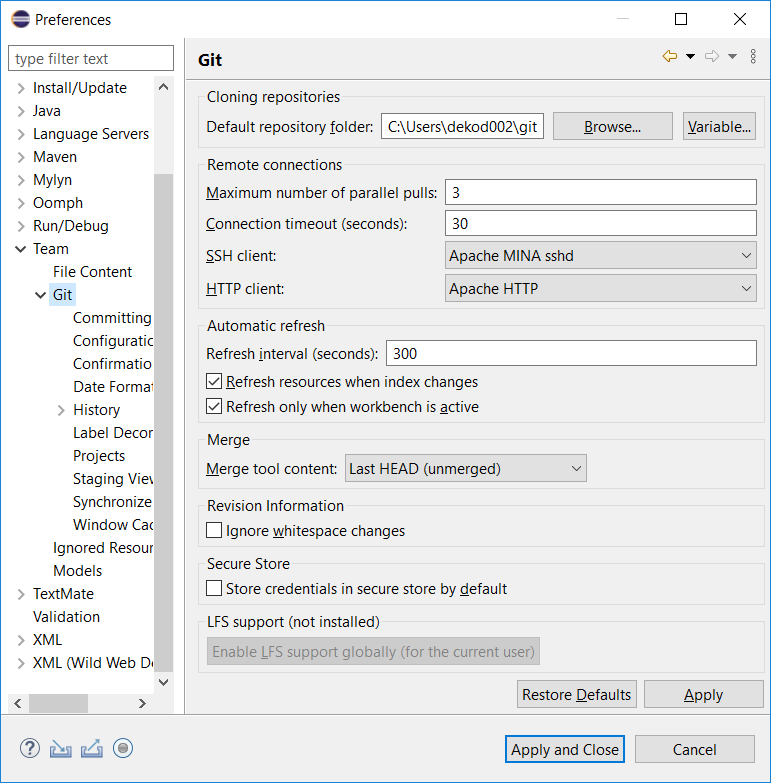
Expand the Team → Git entry in the tree view on the left side of the window.
Enable Ignore whitespace changes.
Attachments:
 image2020-7-21_11-15-43.png (image/png)
image2020-7-21_11-20-21.png (image/png)
image2020-7-21_11-25-45.png (image/png)
image2020-7-21_13-20-56.png (image/png)
image2020-7-21_13-45-42.png (image/png)
image2020-7-22_9-22-42.png (image/png)
image2020-8-5_8-28-57.png (image/png)
image2020-7-21_11-15-43.png (image/png)
image2020-7-21_11-20-21.png (image/png)
image2020-7-21_11-25-45.png (image/png)
image2020-7-21_13-20-56.png (image/png)
image2020-7-21_13-45-42.png (image/png)
image2020-7-22_9-22-42.png (image/png)
image2020-8-5_8-28-57.png (image/png)