Install Google Cloud SDK
Download and install the latest version of Google's Cloud SDK.
Install Eclipse
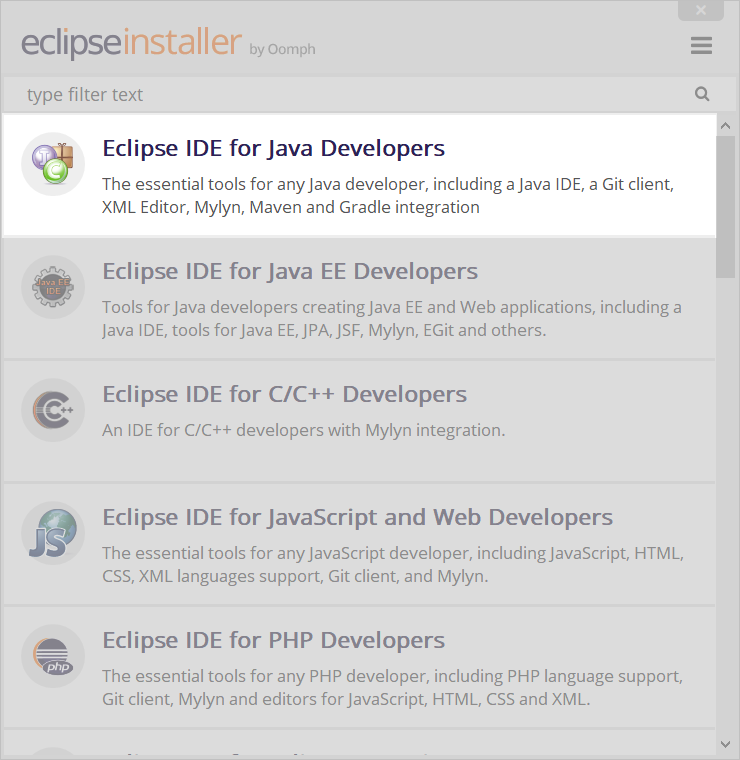
Download the latest version of Eclipse for your platform (currently "Photon"). During the installation procedure, select "Eclipse IDE for Java Developers". Finish the installation.
Configure Eclipse
In Eclipse,
- Run Eclipse as Administrator
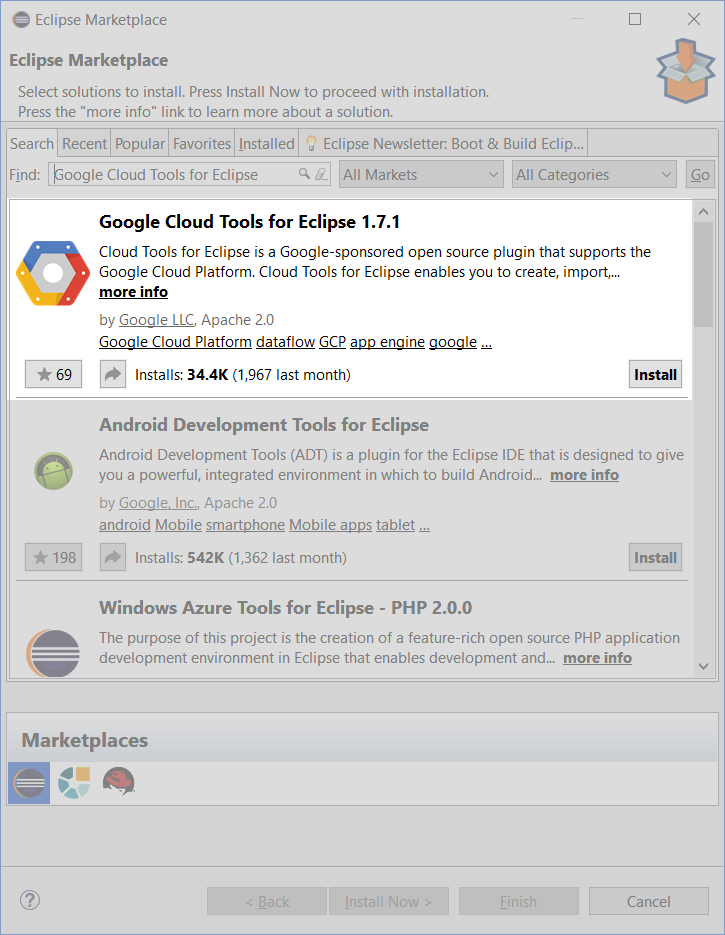
- Select "Help → Eclipse Market Place..."
- Search for "Google Cloud Tools for Eclipse"
- Click install
- Install default features
- Accept licences, click "Finish"
- Restart Eclipse when prompted.
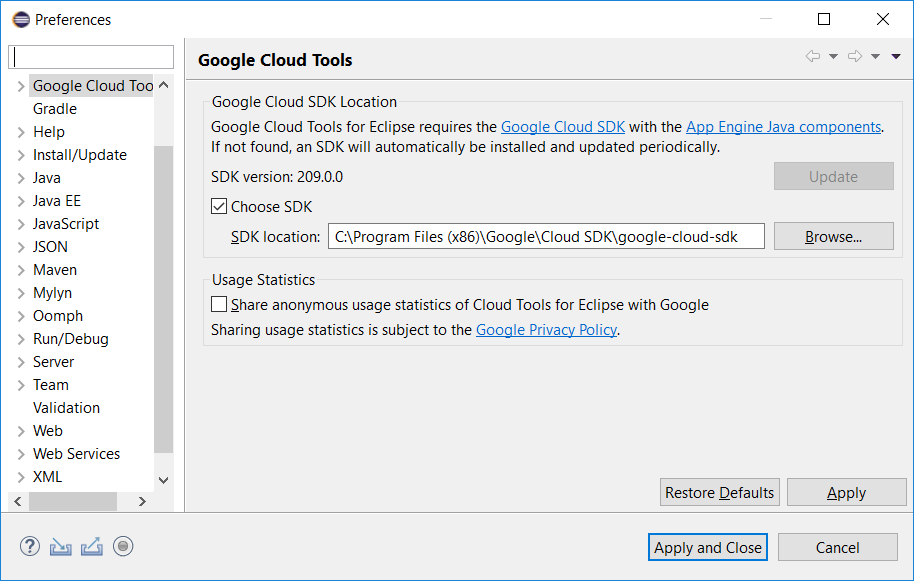
It may be necessary to set the path to the Cloud SDK. If this is the case,
- Select "Window → Preferences"
- Select "Google Cloud Tools"
- Check off "Choose SDK"
- Select "Browse..."
- Find the location of the Cloud SDK
- Click "Select Folder"
- Disable "Share anonymous use statistics"
- Click "Apply and Close"
In order to run this project, you will have to set your JRE to JDK 1.8. To check this,
- Select "Window" → "Preferences"
- Select "Java" → "Installed JREs"
- Select "Execution Environments"
- Ensure that you have JDK 1.8 as the default execution environment by ticking it off.
- Select "Apply and Close"
Fork and Clone the Chatbot Server
Fork https://github.wdig.com/GXTech/chatbot-server.git into your Github account. Then clone your fork of chatbot-server.
Import the Chatbot Project
In Eclipse,
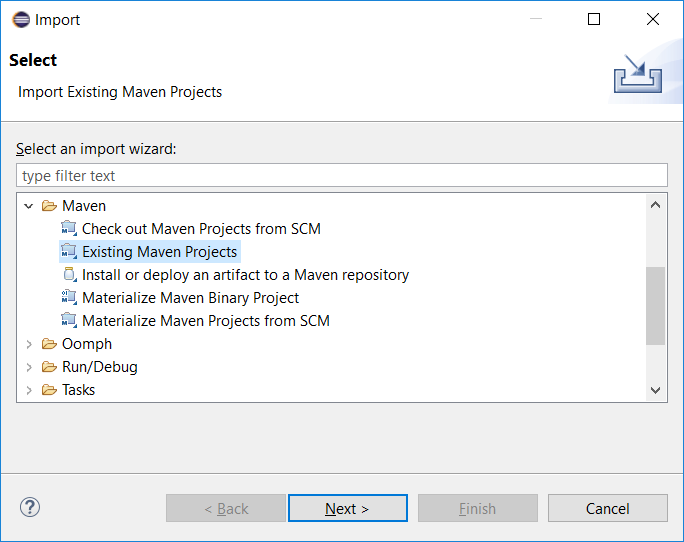
- Select File → Import...
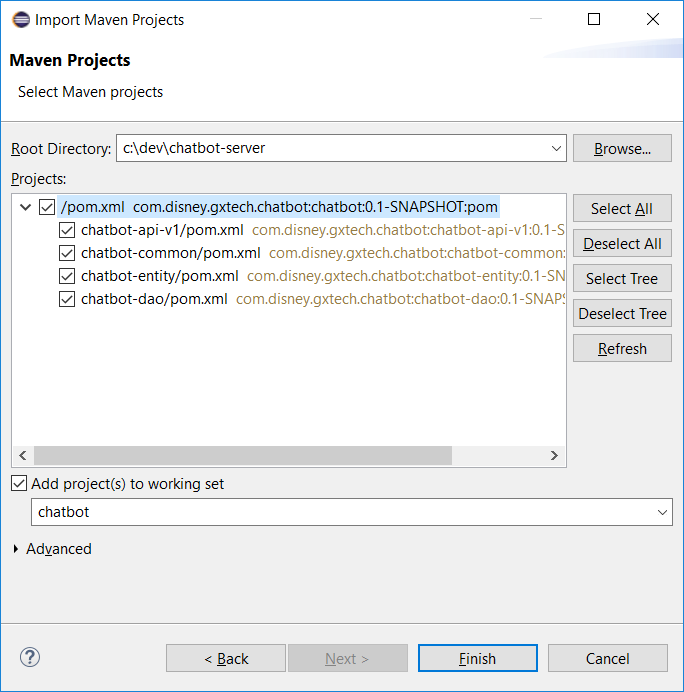
- Select "Maven → Existing Maven Projects", click "Next"
- Browse for the root chatbot directory (eg: c:\dev\chatbot-server)
- Select parent project, all child projects, click "Finish"
Configure the Chatbot (Dev Server)
- Create directory for configuration files
- C:\etc\disney\gxchatbot\ on Windows systems
- /etc/disney/gxchatbot/ on Linux/OSX/Unix systems
- If running Windows Subsytem for Linux you can share the configuration by
- Creating
C:\etc\disney\gxchatbotin Windows - Run
sudo ln -s /mnt/c/disney /etc/disneyin Linux
- Creating
- Generate the configuration file
Run the
config-devserverutility (requiresjqandvaultbinaries to be installed and available via$PATH). Must be located in the chatbot server repo you forked above.bash ./chatbot-utils/src/main/sh/config-devserver
You will also need to request access to Vault and instructions can be found / the email template in the Quick Start guide below.
See Vault: Quick Start for more details on how to use Vault.
Customize Views
In Eclipse,
- Select "Window → Show View → Other"
- Select "Server → Servers"
- Click "Open"
Run the Chatbot Project
It will generally be necessary to publish to the "App Engine Standard at localhost" server if code changes are made. This will be indicated in the Servers view.
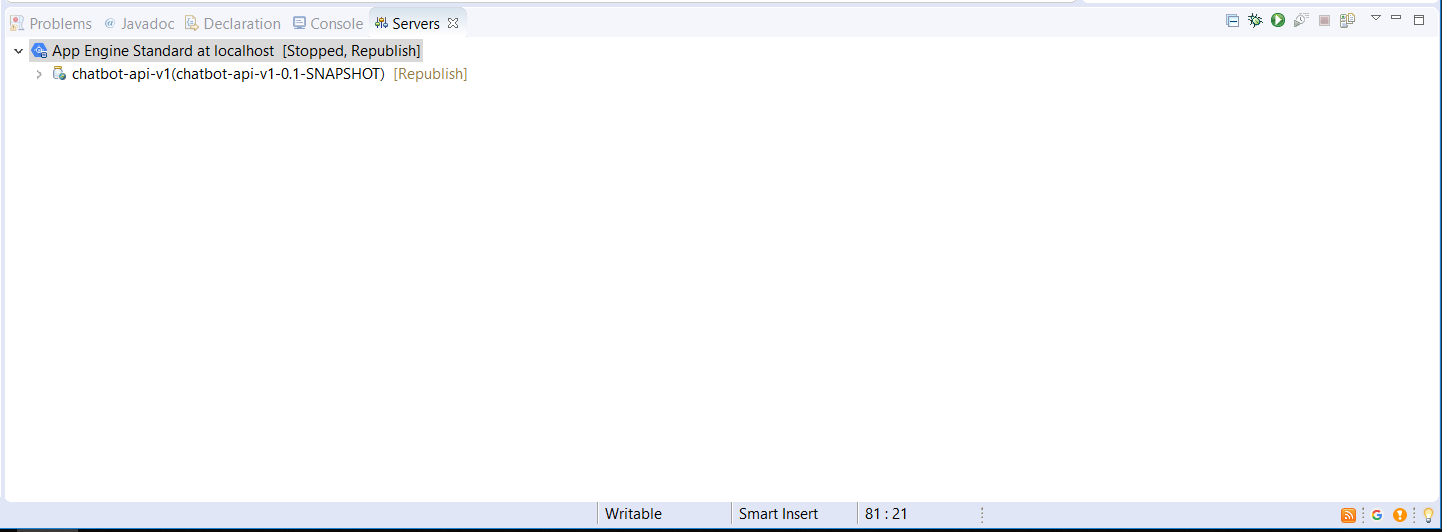
To publish the code,
- Right click "App Engine Standard at localhost" in the Servers view and click "Publish"
To run the code,
- Right click "chatbot-api-v1", click "Run as → App Engine"
Alternatively, you may run the code by right clicking "App Engine Standard at localhost" in the Server view and clicking "Start"
Attachments:
 eclipse.1.png (image/png)
eclipse.2.png (image/png)
eclipse.3.png (image/png)
eclipse.4.png (image/png)
eclipse.5.png (image/png)
eclipse.6.png (image/png)
eclipse.1.png (image/png)
eclipse.2.png (image/png)
eclipse.3.png (image/png)
eclipse.4.png (image/png)
eclipse.5.png (image/png)
eclipse.6.png (image/png)